OPDSy Server
Your books, comics and audiobooks, served your way.
OPDSy Server turns the folders of books, comics and audiobooks on your NAS or home server into a private online library. Point any OPDS reading app at it, or open the web library in a browser, and read from anywhere you can reach your server.
It speaks both OPDS 2.0 and OPDS 1.2 from one address, so new and older apps alike can browse, search and download. Apps that support OPDS Progression, such as OPDSy, save your place on the server, so you can pick up on another device exactly where you stopped.
Keep your folders exactly as they are, let the server arrange each library by author and series, or mix the two. Add users with their own access to each library, fill in missing details from online catalogues, and gather books into shared collections.
OPDSy Server is free and always will be. It is closed source for now, and our aim is to open source it soon.
Free forever · No ads · No account
Highlights
True OPDS 2.0, with reading progress
A full OPDS 2.0 catalogue, not an add-on to an older one, with search, facets, authentication and OPDS Progression. Your reading position is stored on the server, so every device and app that supports it opens the book where you left off. OPDS 1.2 is served too, from the same address.
Ebooks, comics and audiobooks
One server for everything you read and listen to: EPUB, PDF, MOBI, AZW3 and FB2 books, CBZ, CBR, CB7 and CBT comics with ComicInfo.xml, and MP3 and M4B audiobooks. Comics stream page by page, so readers start without downloading the whole archive.
Free, and it will stay free
No paid tier, no subscription, no account and no ads. Every feature is included. It is closed source for now, and our aim is to open source it soon.
Works with any OPDS app
Built to the OPDS standards rather than for one app, so it works with OPDSy, KOReader, Thorium Reader, Panels, Moon+ Reader, PocketBook and any other app that reads OPDS 1.2 or 2.0. The catalogue is checked against an automated OPDS conformance suite.
Folders, managed libraries, or both
Each library chooses how it is arranged. Keep your own folder structure, let the server arrange books by author, series or any template you like, or mix the two with rules. Your folders can even stay read-only.
Made for OPDSy
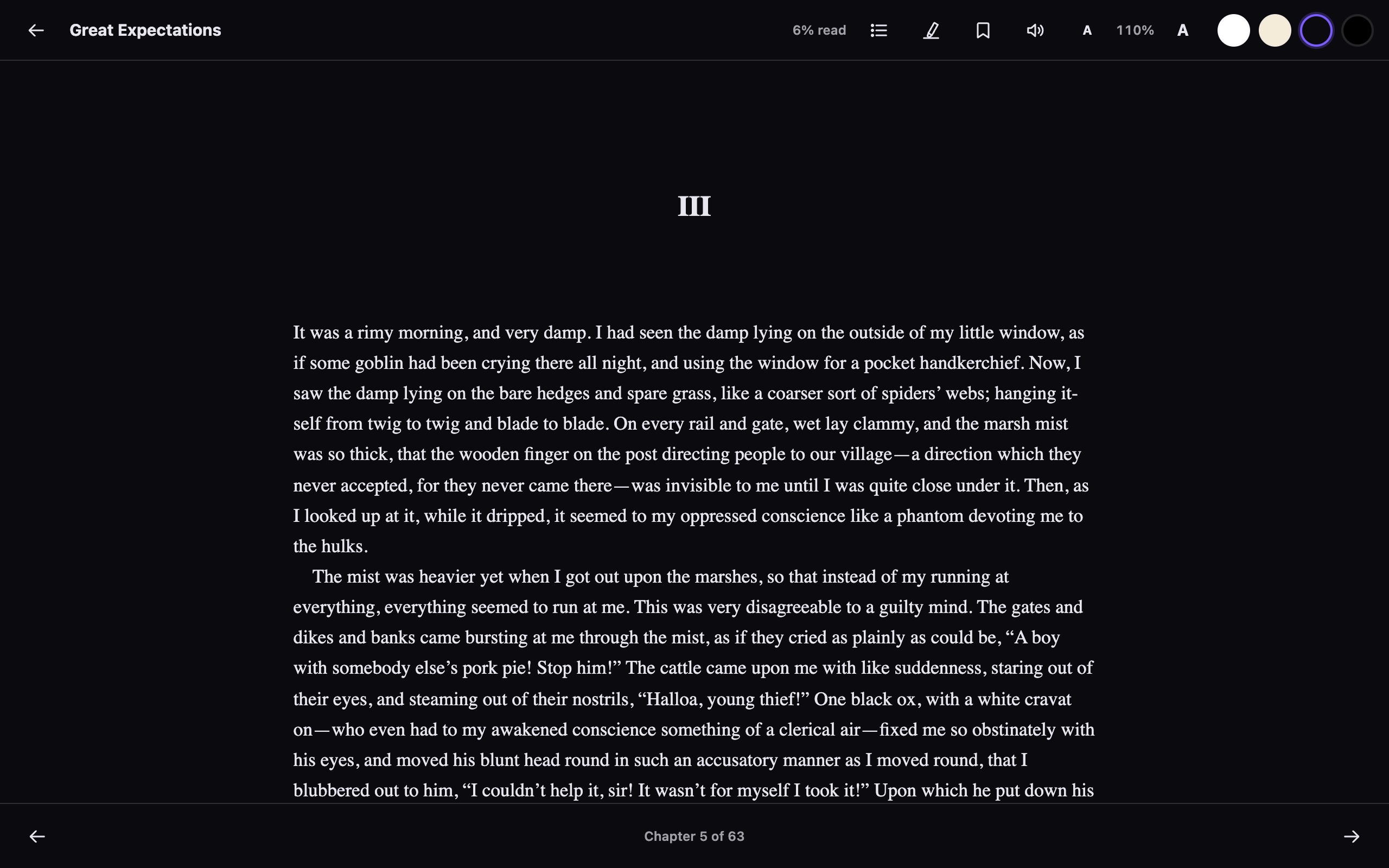
Fully compatible with the OPDSy app. Reading progress, favourites, highlights, notes and bookmarks sync with the server, so they follow you between your phone, your tablet and the web library.
Features
One address for every library
Books, comics and audiobooks can live in separate libraries, each with its own folder and type, and one catalogue address covers every library a reader is allowed to open.
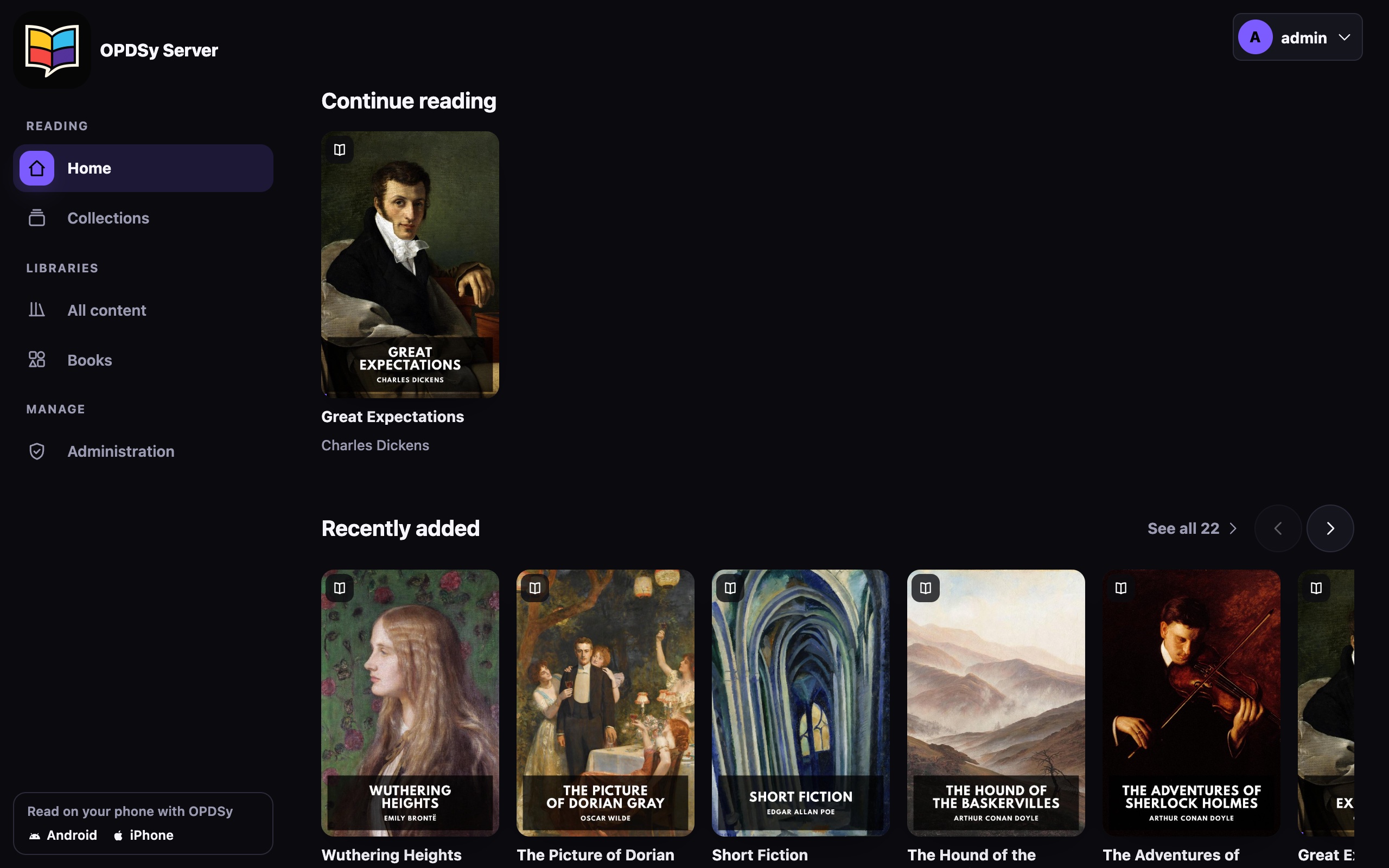
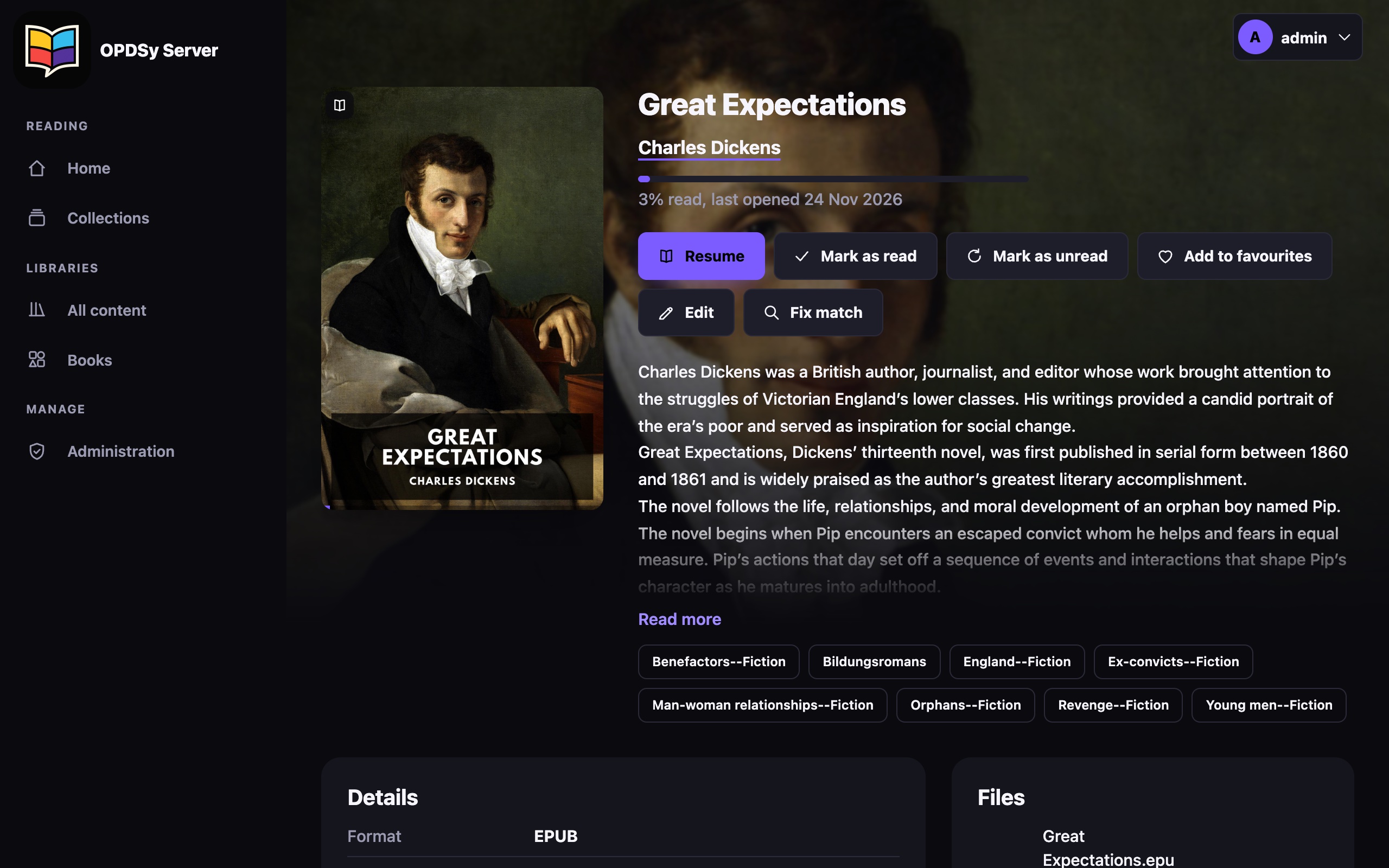
Continue reading everywhere
Progress saved with OPDS Progression puts a book in the Continue reading group of the catalogue, and becomes the resume page for comics in OPDS 1.2 apps that support page streaming.
A web library and reader
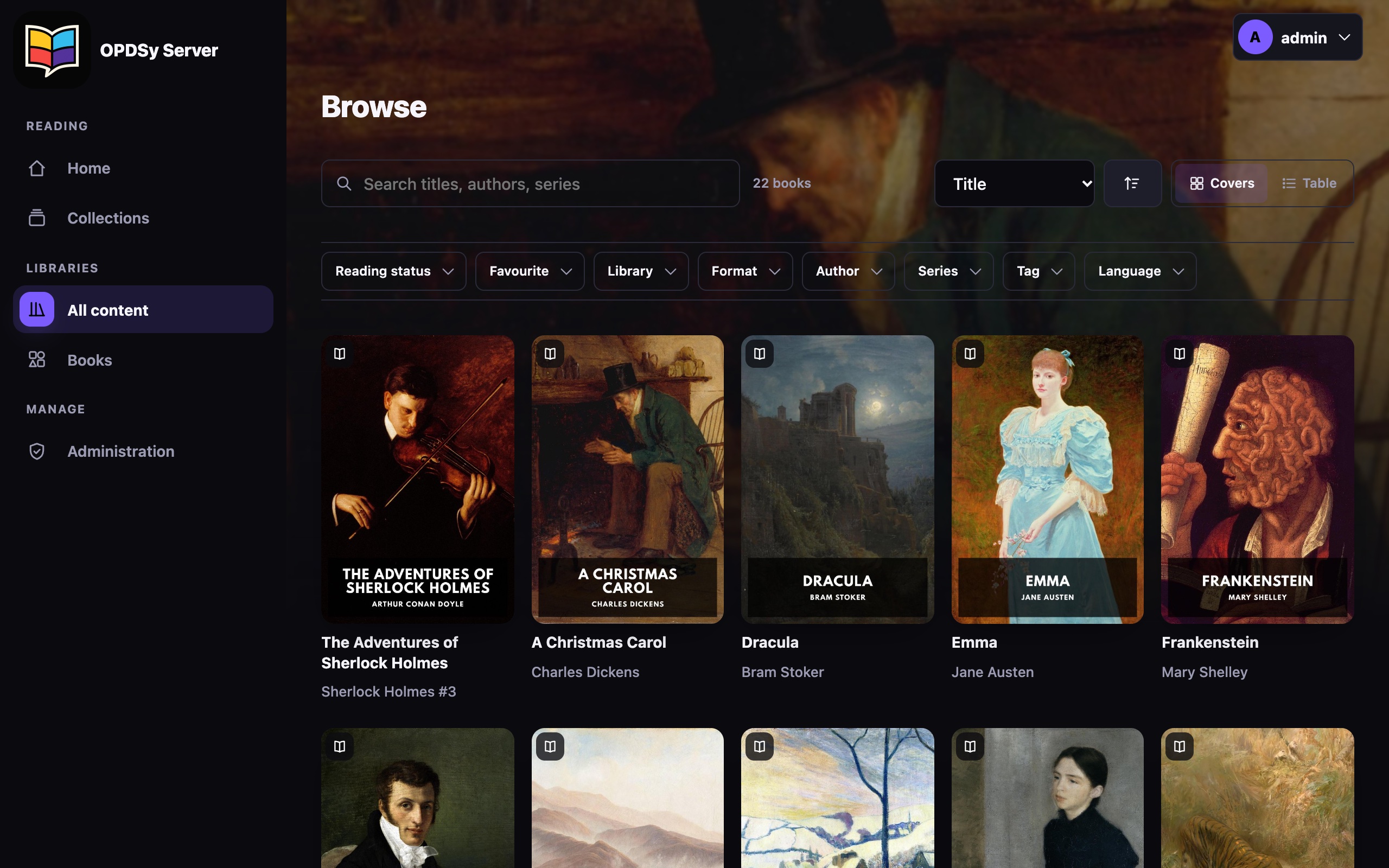
Browse every book you can read in a browser, as a cover grid or a table, with search, filters and sorting. Read EPUB, PDF and comics in the browser, and have books read aloud.
Your folders, or a tidy library
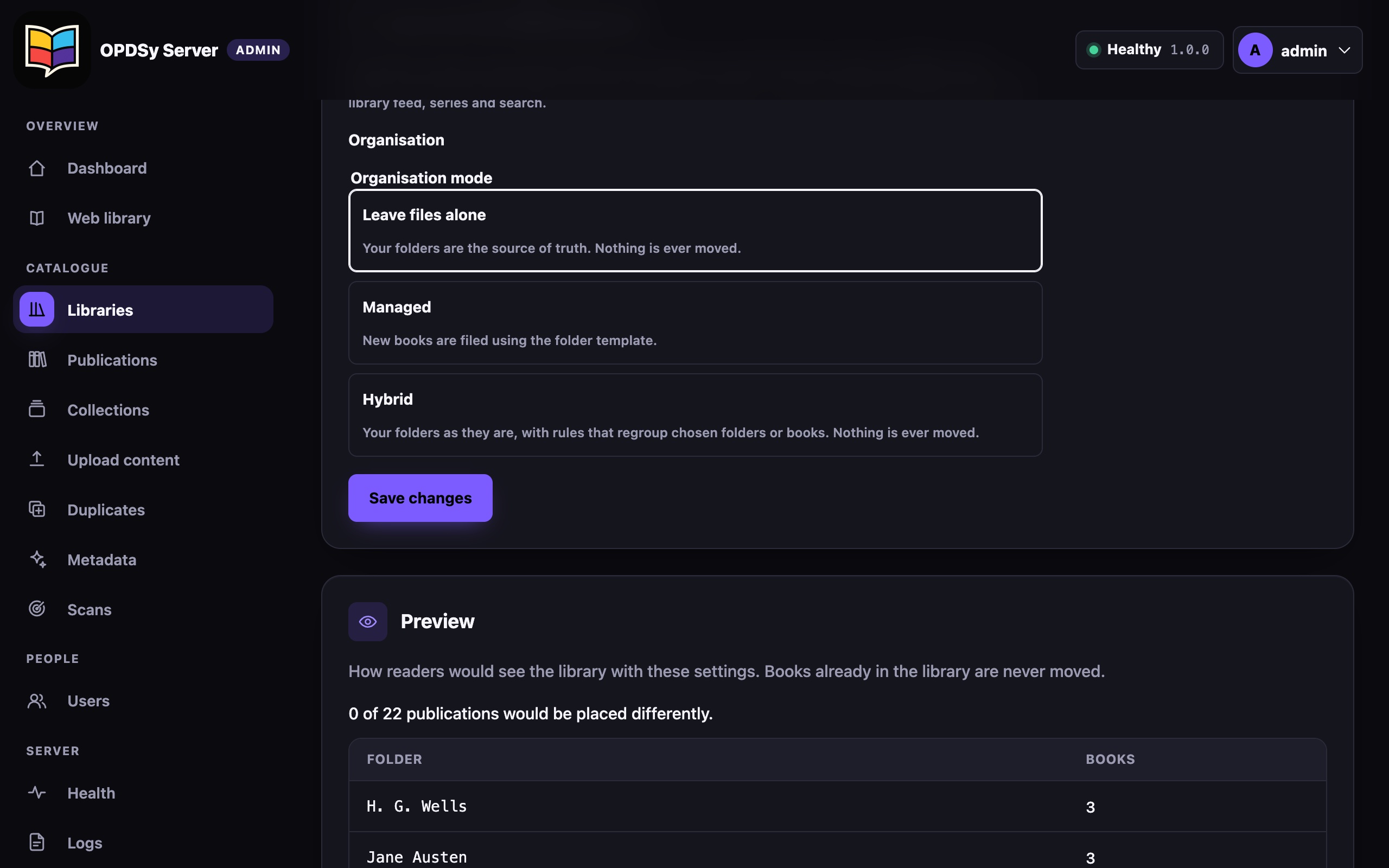
Filesystem mode publishes your folders exactly as they are. Managed mode arranges books with a template such as author, series and title. Hybrid mode keeps your folders and regroups the ones you choose.
Uploads and an incoming folder
Drag files into a library from the admin page, or drop them into an incoming folder on your NAS. Each book is checked and filed in the right place, and an existing file is never overwritten.
Users and access
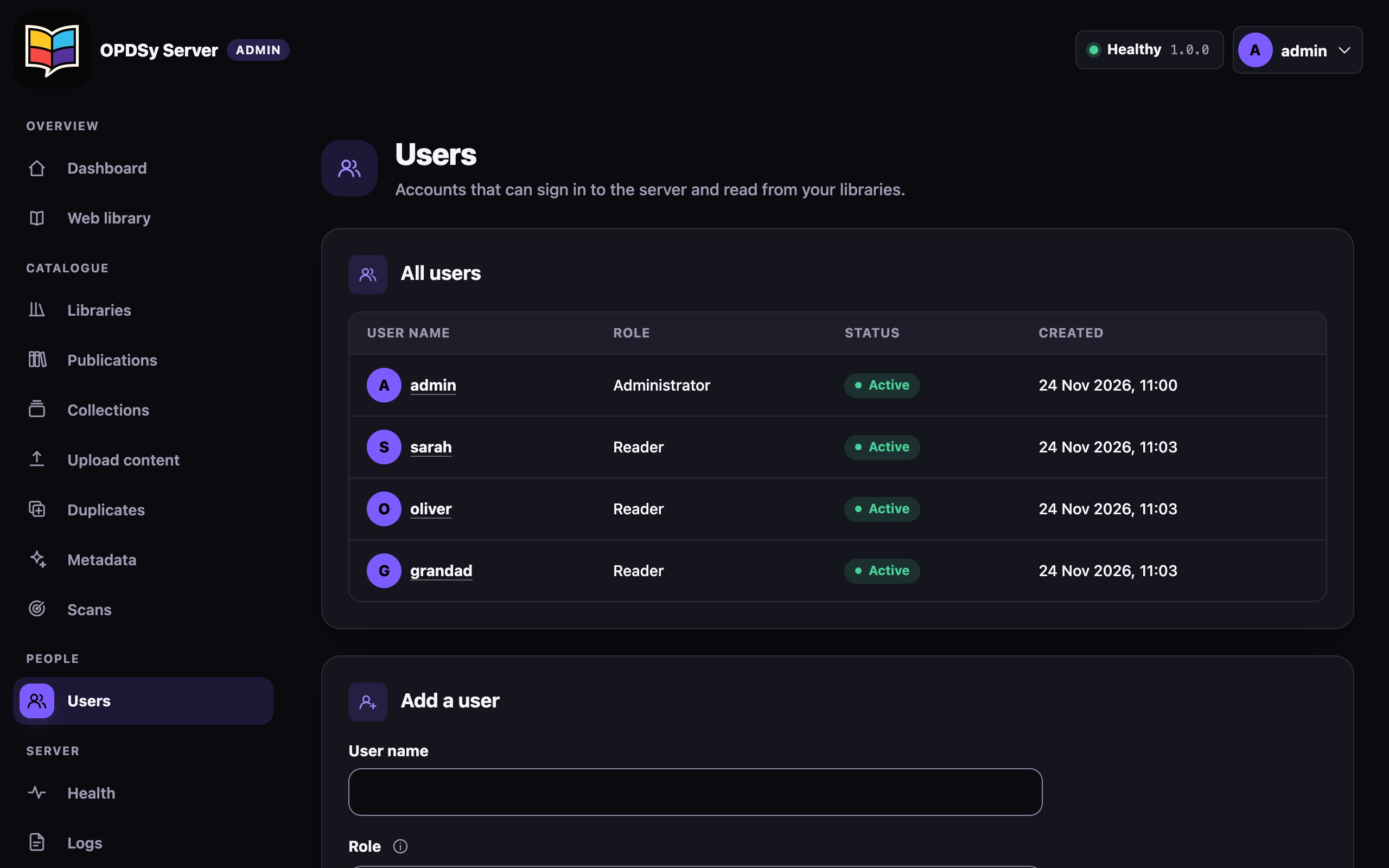
Give each person their own account and choose which libraries they can open. A reader only ever sees the books they are allowed to read, in feeds, search and collections alike.
Online metadata, when you want it
Fill in missing titles, authors, series, descriptions and covers from Open Library, Google Books, Apple Books, Hardcover, ComicVine and Audnexus. It is off until you turn it on, every change can be rolled back, and locked fields are left alone.
Collections
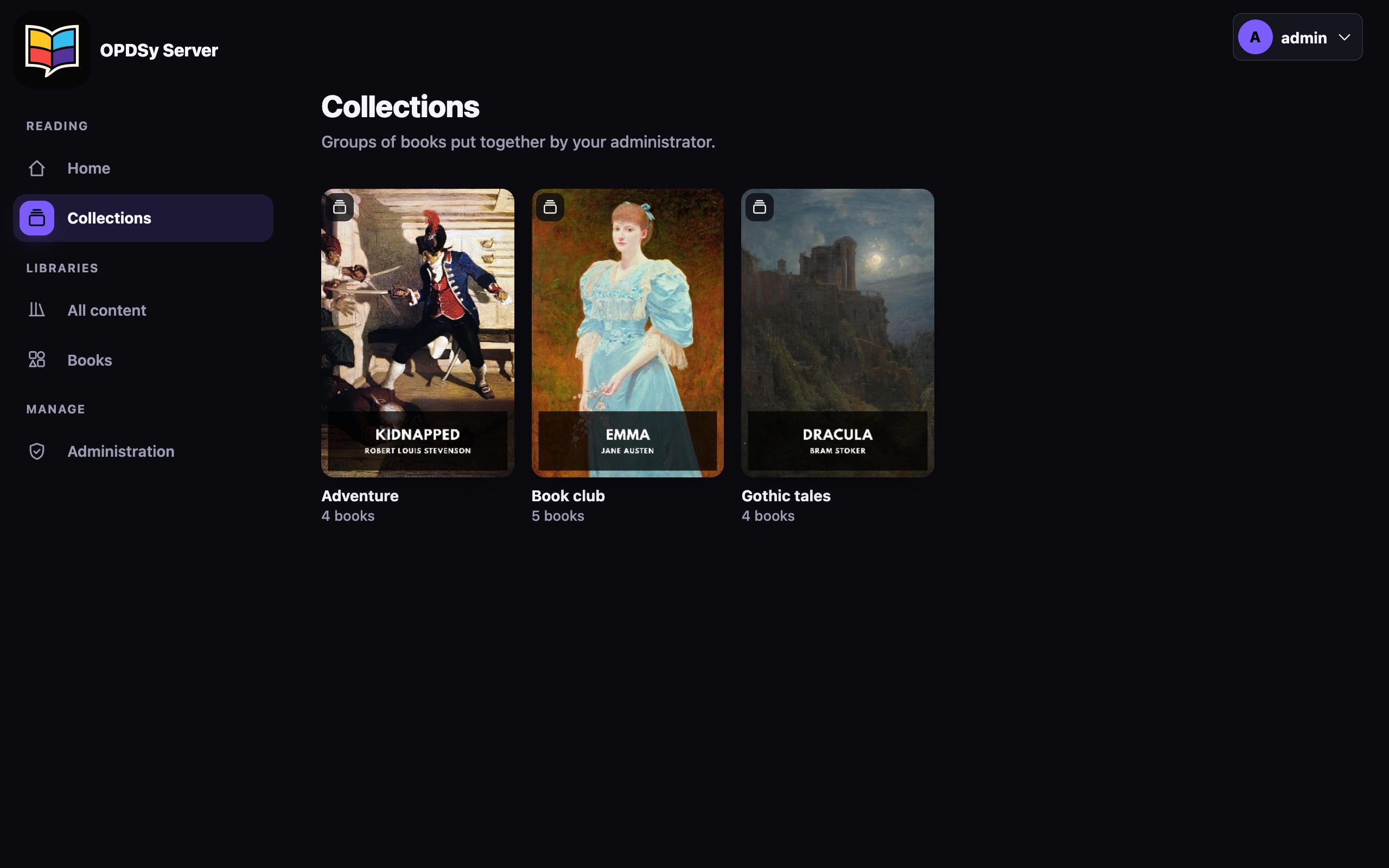
Make shared shelves such as “Book club” or “Kids’ favourites”, with books from any library in the order you choose. Readers see them in their reading app and in the web library.
Find duplicates
See exact copies and likely duplicates, such as an EPUB and a PDF of the same book, across all your libraries, and remove the copies you do not need.
Dictionary and natural voices
Download an English dictionary so readers can look up words, and natural-sounding voices for read-aloud. Both run on your server, so nothing about what is being read is sent anywhere.
Looks after itself
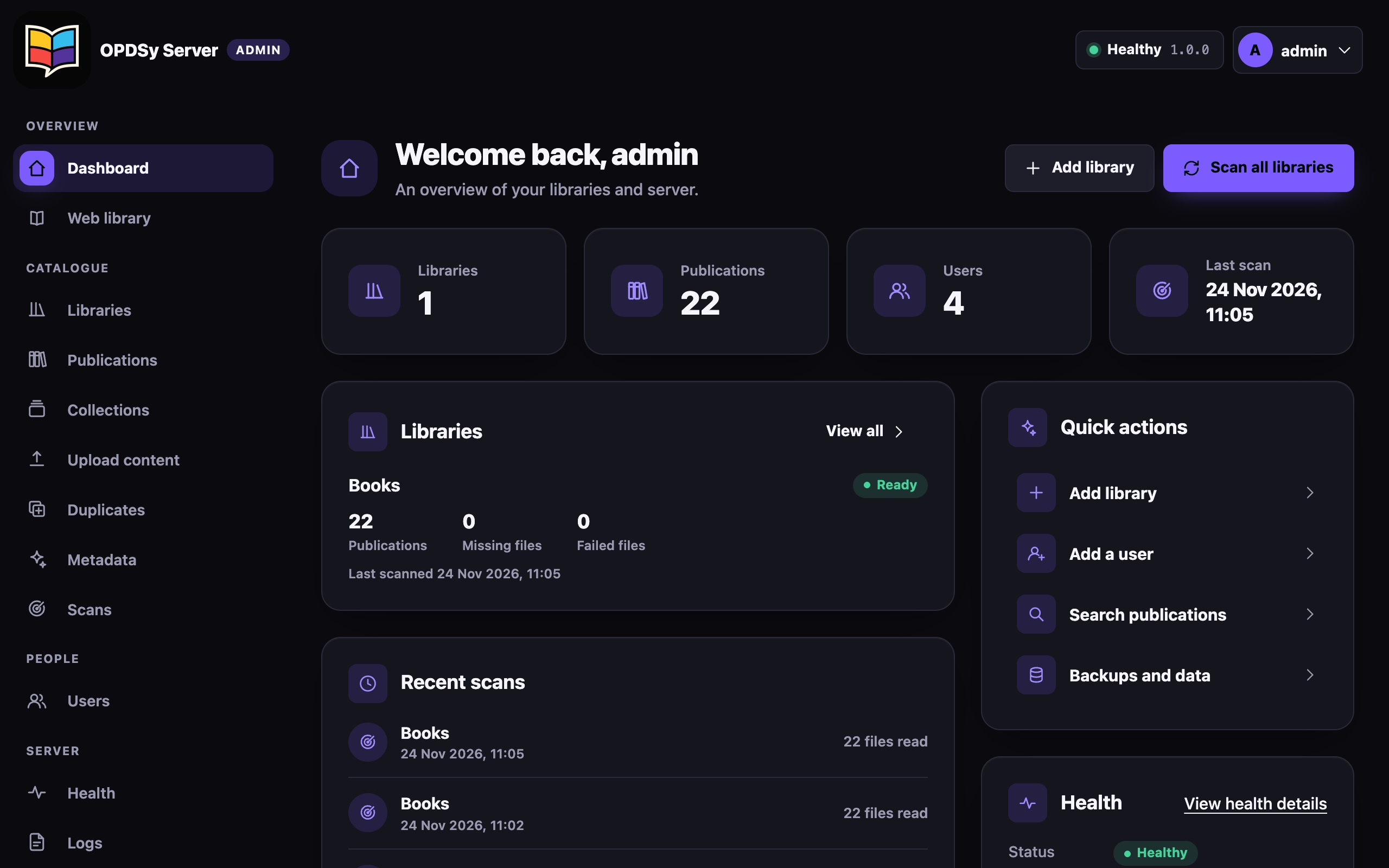
The database is backed up every day, folders are watched for new books, and the health page shows your libraries, free disk space and version. The admin page tells you when an update is available.
Runs on your NAS
One Docker image for Intel, AMD and ARM, so it runs on a Synology, QNAP or Unraid NAS, a Raspberry Pi or any computer with Docker. It runs as a non-root user and is light enough to sit quietly alongside everything else on your NAS.
Getting started
From an empty folder to reading on your phone in about five minutes. This guide uses plain HTTP on your home network.
Install Docker
You need Docker with Docker Compose. On a Synology NAS, install Container Manager from Package Center. On a QNAP NAS, use Container Station. On a computer, install Docker Desktop or Docker Engine. Running docker compose version should print a version.
Create a Compose file
Make a folder for the server, for example opdsy-server, and save this file in it as docker-compose.yml.
docker-compose.yml services: opdsy-server: image: ghcr.io/binarymeadow/opdsy-server:latest container_name: opdsy-server ports: - "8080:8080" volumes: - opdsy-config:/config - /volume1/Books:/books environment: TZ: Europe/London Opdsy__Security__AllowInsecureLocalHttp: "true" restart: unless-stopped volumes: opdsy-config:Change /volume1/Books to the folder that holds your books. The folder must be readable and writable by user 1654, the user the server runs as, so it can save metadata, take uploads and file books from incoming folders. The opdsy-config volume keeps your database and settings. The AllowInsecureLocalHttp setting lets apps on your home network sign in over plain HTTP.
Note: Over plain HTTP the server only accepts passwords from home network addresses, so to read away from home, put it behind a reverse proxy with HTTPS and remove the AllowInsecureLocalHttp line.
Start the server
In a terminal, go to the folder and run this command. On a Synology NAS you can instead open Container Manager, choose Project, then Create, pick the folder and paste the file.
docker compose up -dThe first start downloads the image. Then go to http://<your server address>:8080/health/ready in a browser. It shows a success response when the server is ready. To use another port, change the first 8080 in the ports line.
Run the set-up wizard
Open http://<your server address>:8080/admin in a browser. There are no default passwords. The wizard asks you to create an administrator with a password of at least 12 characters, name your first library and choose its folder inside /books, and choose how files are organised. Pick Leave files alone to keep your folders exactly as they are. The first scan then starts, and a few thousand books take a minute or two.
Connect a reading app
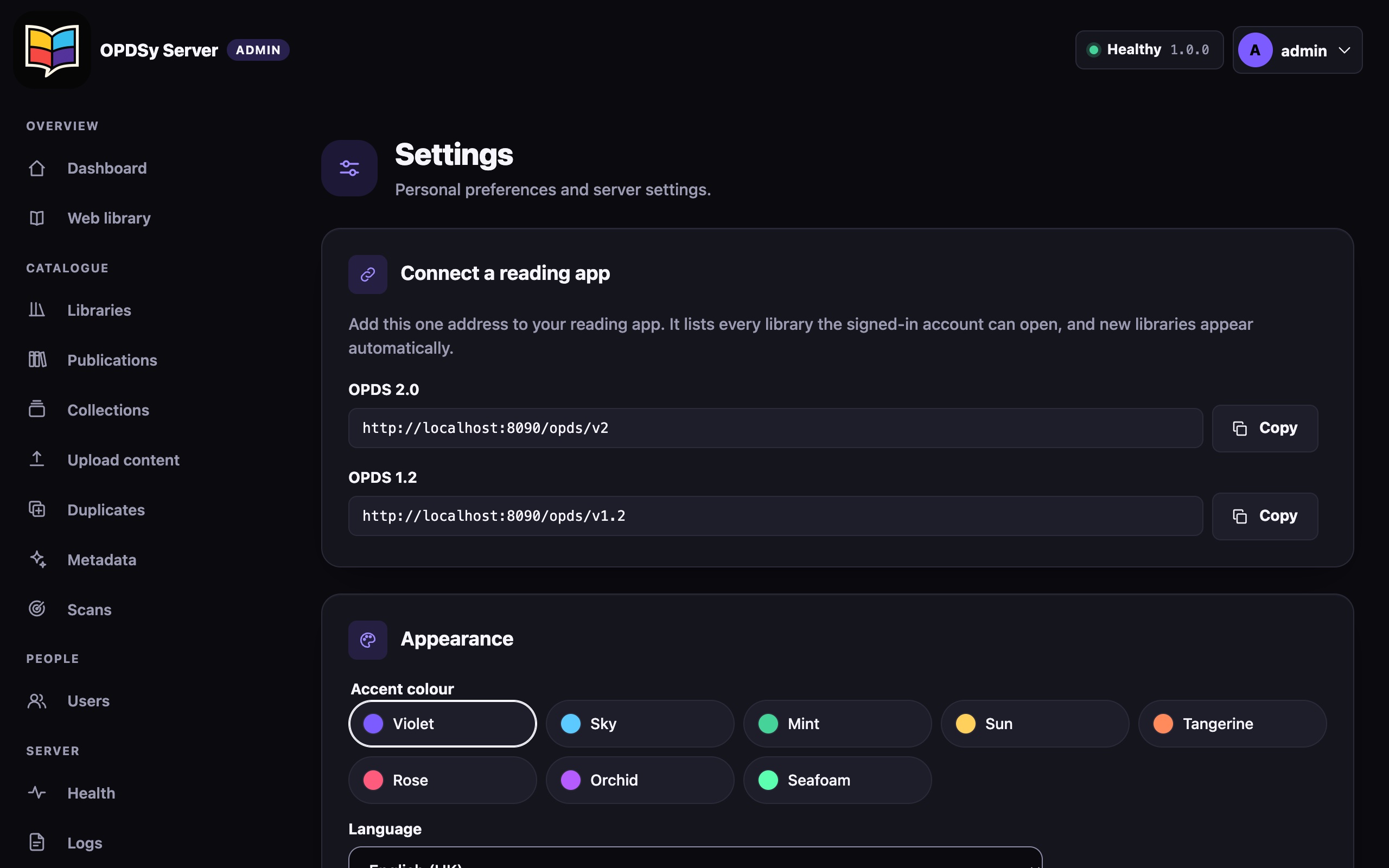
In the admin pages, open Users, select your user name and create an app password for each device. Copy it straight away, because it is shown only once. In your reading app, add an OPDS catalogue with your user name, the app password and one of these addresses.
OPDS 2.0 (OPDSy, Thorium Reader):  http://<your server address>:8080/opds/v2
OPDS 1.2 (KOReader and older apps): http://<your server address>:8080/opds/v1.2
Settings, under Connect a reading app, shows both addresses with copy buttons.
Keep it up to date
To update to the latest version, go to the folder and run these commands.
docker compose pull
docker compose up -d
Your books stay in your own folder and your database and settings stay in the opdsy-config volume, so nothing is lost when the container is replaced.
Frequently asked
What is an OPDS server?
OPDS is an open standard for sharing a catalogue of books. An OPDS server publishes your books so that reading apps can browse, search and download them over your network or the internet. OPDSy Server is one, for books, comics and audiobooks.
Is OPDSy Server really free?
Yes. There is no paid tier, no subscription, no account and no ads, and every feature is included. It will stay free.
Is it open source?
Not yet. OPDSy Server is closed source for now, and our aim is to open source it soon. The Docker image is free for anyone to use in the meantime.
Which reading apps can I use?
Any app that reads OPDS 1.2 or OPDS 2.0. Use the OPDS 2.0 address with apps such as OPDSy and Thorium Reader, and the OPDS 1.2 address with apps such as KOReader, Panels, Moon+ Reader and PocketBook e-readers. Both addresses are shown on the admin page.
Do I need the OPDSy app?
No, any OPDS app works. OPDSy is fully compatible, though: it reads OPDS 2.0, signs in through the server, streams comics, plays audiobooks, and syncs reading progress, favourites, highlights and bookmarks with the server.
Will it move or change my files?
Not unless you ask it to. In filesystem and hybrid mode nothing is ever written to your library folders, which can be mounted read-only. In managed mode, only books you upload or drop into an incoming folder are moved. Online metadata is written into a file only if you choose to.
What do I need to run it?
Docker, and a folder of books. That can be a NAS such as a Synology, QNAP or Unraid box, a Raspberry Pi, or any Linux, Windows or macOS computer with Docker. The image is built for both Intel and AMD (amd64) and ARM (arm64) processors.
Can I read away from home?
Yes, wherever your server is reachable. On your home network a local address works over plain HTTP. Away from home, put the server behind a reverse proxy with HTTPS, because over plain HTTP it only accepts passwords from home network addresses.
Does it send any data to Binary Meadow?
No. There is no telemetry and no account. The server only contacts the internet to check for updates, which you can turn off, and to look up metadata, download a dictionary or download voices when an administrator asks it to.
Still stuck? Email hello@binarymeadow.com and we will help.
Get OPDSy Server
Runs in Docker on a NAS, a home server or any computer, on Intel, AMD and ARM processors. Get the image below, then follow the getting started guide above.
OPDSy Server is free, and it will stay free. There is no paid tier, no subscription, no account to create and no ads. It is closed source for now, and our aim is to open source it soon.
Privacy
OPDSy Server runs on your own hardware and keeps your library, accounts and reading progress there. It has no Binary Meadow account and no telemetry, and it only contacts the internet for update checks and for downloads and lookups an administrator turns on.
Read the OPDSy Server privacy policy →Books shown in the screenshots are public-domain classics in editions from Standard Ebooks, whose covers use public-domain paintings and are dedicated to the public domain (CC0). User names and collections are examples.